

How to add IF ELSE block in Truclient Protocol Loadrunner?
Steps to add IF ELSE Condition Block in Truclient Protocol


1. Right Click the step which has to be validated and Select If Clause --> Group Into.
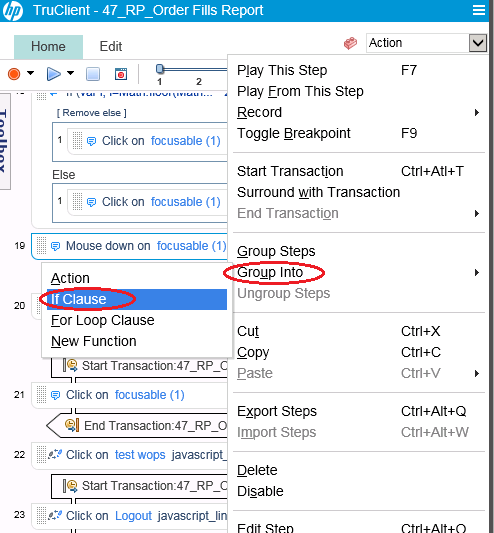
2. Now the selected step comes under the IF condition
3. Click the Add Else Link and drag and drop the step to executed in the Else Condition.

4. Now add a condition in the IF blocks JavaScript to validate and execute the steps.

How to resolve Drag and Scroll not working issue in TruClient Protocol Loadrunner
I was doing truclient protocol based scripting for one of the applications developed on WebSwings. So the entire webpage was considered as one single element or object and all the clicks made on that page were being recorded using their X & Y coordinates.
Issue:
Solution:


Similarly for drag or scroll up click the up button in the scroll bar and change the step action to 'Mouse Up'.
Thats it now your page drag will work without any issues.
Issue:
- So when I click and drag the page slider down in the scroll bar it was getting recorded as a 'Drag' step.
- But during replay script was not able to perform the drag since it was not able to identify the object.
Solution:
- Instead of doing a click and drag of the page slider, scroll the page by clicking on the down button in the scroll bar.

- It will get recorded as 'Click' step.
- Now change the step Action from 'Click' to 'Mouse Down'.

- Increase the Step Minimum Time to 10 sec. This needs to be done because we need to give sometime for the page to scroll before the next step gets executed. Since Truclient is asynchronous in nature.

Similarly for drag or scroll up click the up button in the scroll bar and change the step action to 'Mouse Up'.
Thats it now your page drag will work without any issues.
Why & How to do browser Resizing in TruClient Protocol Loadrunner
Need for browser Resizing:
I was doing truclient protocol based scripting for one of the applications developed on WebSwings. So the entire webpage was considered as one single element or object and all the clicks made on that page were being recorded using their X & Y coordinates.
The issue was that browser size varied between Developer and Load modes and identifying the objects using X & Y coordinates failed.
The solution is to make the browser size same in both the modes for which Browser Resize step comes handy.
How to do browser Resizing:
In Development mode, before recording we need to add the first step as Browser Resize and set the browser to our desired size.
Step 1: Goto Toolbox --> Functions --> Generic Browser Action and by default it will be Navigate step.

Step 2: Expand the Navigate step Goto Step --> Action and change the Action from Navigate to Resize.


Step 3: Now click on the Width or on the Height and set the Width and Height to the desired px value. In my case I have set Width to 800px and Height to 600px.


Step 4: Now record all your flow steps after the Resize step.
Thats it, now when you run the script in Development mode first the browser will be set to the desired Width & Height and then the steps will be executed.
Now lets see how to set the Browser width and Height in Load mode.
Step 1: Disable the Resize step in Development mode and save it.
Step 2: Goto RunTimeSettings --> Others --> Non Interactive Window Size.
Step 3: Check both the options and set the Width to 800px and Height to 600px and save the script.

Thats it. Now browser will be set to the desired size in load mode as well.
Since we have done Browser Resizing identifying the objects using X & Y coordinates will no more fail.
I was doing truclient protocol based scripting for one of the applications developed on WebSwings. So the entire webpage was considered as one single element or object and all the clicks made on that page were being recorded using their X & Y coordinates.
The issue was that browser size varied between Developer and Load modes and identifying the objects using X & Y coordinates failed.
The solution is to make the browser size same in both the modes for which Browser Resize step comes handy.
How to do browser Resizing:
In Development mode, before recording we need to add the first step as Browser Resize and set the browser to our desired size.
Step 1: Goto Toolbox --> Functions --> Generic Browser Action and by default it will be Navigate step.

Step 2: Expand the Navigate step Goto Step --> Action and change the Action from Navigate to Resize.


Step 3: Now click on the Width or on the Height and set the Width and Height to the desired px value. In my case I have set Width to 800px and Height to 600px.


Step 4: Now record all your flow steps after the Resize step.
Thats it, now when you run the script in Development mode first the browser will be set to the desired Width & Height and then the steps will be executed.
Now lets see how to set the Browser width and Height in Load mode.
Step 1: Disable the Resize step in Development mode and save it.
Step 2: Goto RunTimeSettings --> Others --> Non Interactive Window Size.
Step 3: Check both the options and set the Width to 800px and Height to 600px and save the script.

Thats it. Now browser will be set to the desired size in load mode as well.
Since we have done Browser Resizing identifying the objects using X & Y coordinates will no more fail.
How to clear the text field in Type Step TruClient Protocol Loadrunner.
If at all a text field in a web page is having sample values and when we are trying to type in some text in the filed using Type Step in Truclient, we need to clear the sample input first and then enter only our actual text input. Otherwise our actual text input will get appended to the existing sample input. Thus entering a wrong input value.

Follow the below steps to over come this.
1. Expand the Type Step.
2. Goto Arguments.
3. Set the Clear Argument value to True. This will clear the existing vales in the text filed and enter our script input.

Note - The default value for the Clear Argument is True.
Steps to view run time replay in load mode - TruClient Protocol - Loadrunner
In the Load mode of Truclient Protocol we will not be able to see the replay snapshots. So if at all we need to check if the flow is working properly in load mode, then we can enable the run time replay using the below steps.
1. Create the script in Development or Interactive mode, save it and close the Truclient browser.
2. Open the script folder.
3. Open 'default.cfg' file in notepad.
4. Search for 'PaintWindowsInLoad' and change its value from 0 to 1.
5. Save the 'default.cfg' file.
6. Now replay the script in load mode and you can see the Truclient browser launching and steps getting replayed.
How to find the RAM memory footprint of TruClient Vusers?
- TruClient is a GUI based Loadrunner protocol.
- One of the major setbacks of this protocol is its 1 vusers consumes a lot of physical RAM memory. Thus limiting the Vuser allocation to Load Generators.
In this post we will discuss about How to find the RAM memory footprint of TruClient Vusers?
- First create a TruClient Script for your desired flow.
- Then add the script to controller and assign 10 Vusers to it and start the run
- Go to --> Task Manager --> Performance Tab --> Open Resource Monitor --> Memory Tab. Here you can see the list process that are running and their memory usage.
- TruClient Vusers use browsers to execute the script and you can find a bunch of browser exe processes opened up. In our case it is firefox.exe.
- Check the working set column which shows RAM memory usage for each exe process i.e each Vuser. In our case each Vusers needs around 200 MB of memory.
- Based on this you can calculate the amount of RAM needed for other OS based activities and the amount of RAM needed for our execution and distribute the Vusers accordingly.

Subscribe to:
Posts (Atom)