Automated VB script to check the web application status and send mail to stakeholders when app is down

 VB script code:

Dim waittime : waittime = 60000

do

Set objOutlook = CreateObject("Outlook.Application")

set objMail = objOutlook.CreateItem(0)

Dim strWebsite

strWebsite = "vnothperformancetesting.blogspot.com"

MailSubject = "Application Status on" & " " & Now & " is down"

If PingSite( strWebsite ) Then

    WScript.Echo "Application" & strWebsite & " is up and running!"

Else

    WScript.Echo "Application" & strWebsite & " is down!!!"

objMail.Display

objMail.To = "katXXXu@gmail.com"

ObjMail.Recipients.Add("katXXXu@gmail.com")

objMail.cc = "katXXXu@gmail.com"

objMail.Subject = MailSubject

objMail.Body = "Hi, Ping status to application shows that application is Down!. Pls look into it."

objMail.Send

objOutlook.Quit

set objMail = Nothing

Set objOutlook = Nothing

End If

WScript.Sleep(waittime)

loop

Function PingSite( myWebsite )

    Dim intStatus, objHTTP

    Set objHTTP = CreateObject( "WinHttp.WinHttpRequest.5.1" )

    objHTTP.Open "GET", "http://" & myWebsite & "/", False

    objHTTP.SetRequestHeader "User-Agent", "Mozilla/4.0 (compatible; MyApp 1.0; Windows NT 5.1)"

On Error Resume Next

objHTTP.Send

intStatus = objHTTP.Status

On Error Goto 0

If intStatus = 200 Then

PingSite = True

Else

PingSite = False

End If

Set objHTTP = Nothing

End Function

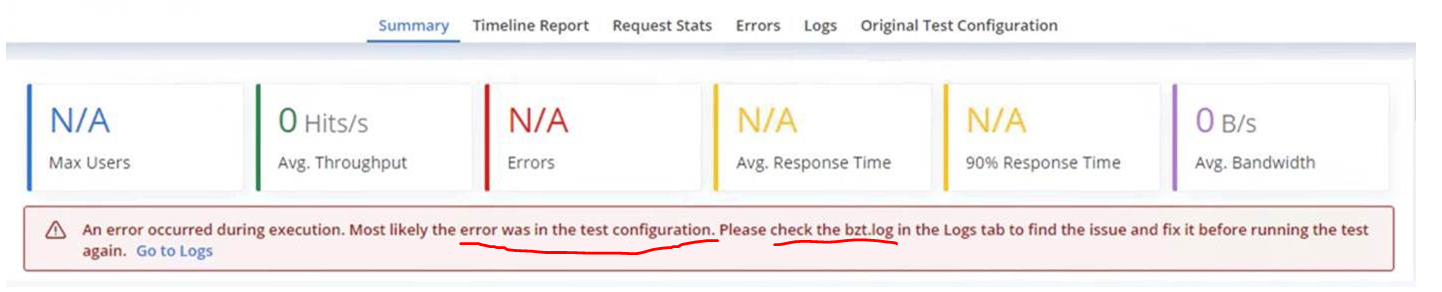
Blazemeter execution failing with "Test Configuration Error"

Error: 

On running a Blazemeter test, test got stopped with the below error message in the screenshot.


On checking the bzt.log file, the following error message was seen in the log 

Aug 17, 2022, 4:44:04 AM[system][r-v4-62fca9eab948b393945869]File /tmp/artifacts/taurus-base-config.yml not found on disk

Solution:

Check the length of the Jmeter script / .jmx script file name and reduce it. 

Example: If the current file name is "01_Scenario_01_Tab_Navigation_All_Dashboard.jmx", then reduce the length of the file name "01_Scenario_Tab_Nav_Dshbrd.jmx"

Replace a part of the string in Jmeter

 There will be instances where we will have to replace a part of the correlation string and pass it on to subsequent request in Jmeter. This can be achieved in 2 methods. 

Actual Correlation Output: C_SID = Hello&#x2dWorld

Expected Correlation Output: C_SID_R = Hello-World

Method 1: Using the existing "__strReplace" function from "Custom JMeter Functions" Plugin.

Install the "Custom JMeter Functions" Plugin from plugins manager and restart the Jmeter.

Syntax: ${__strReplace(InputString,To Be Replaced,To Replace,OutputString)

Code : ${__strReplace(${C_SID},&#x2d,-,C_SID_R)


Method 2: Using a Beanshell sampler

Code:

String a = vars.get("C_SID");

String b = a.replaceAll("&#x2d", "-");

vars.put("C_SID_R",b);


Print Date and Time parameters to a text/csv file in Jmeter

 Below is code to print Date and Time parameters to a text/csv file in Jmeter


String Date = vars.get("${__time(MM/dd/yyyy,currentDate)}");

String Time = vars.get("${__time(hh:mm:ss,currentTime)}");

String Date = vars.get("currentDate");

String Time = vars.get("currentTime");

log.info(Date);

log.info(Time);

f = new FileOutputStream ("C:/[FilePath]/Timestamp.txt",true);

p = new PrintStream(f);

this.interpreter.setOut(p);

print(Date+","+Time);

f.close();

Beanshell script to handle Correlation Value "Not Found" equal to "ERROR" in Jmeter

 In Loadrunner we have an attribute in the correlation function which will fail the request/user if the correlation value "Not Found" is set to ERROR. But in the Jmeter we do not have any such straight forward approach and the same can be achieved using the below code in the Beanshell assertion. 

C_SAML & C_RelayState are the two correlations that has been done in a request and below code will check if they are null (Empty) and if that is true, it will fail the request.

Code to the Placed in Beanshell Assertion:

String SAML = vars.get("C_SAML"); //Save the correlation value to a string
String RelayState = vars.get("C_RelayState"); //Save the correlation value to a string
if (C_SAML != null && C_RelayState != null) //if condition to check if the value is not null
{
Failure = false; //if the value is null fail the sampler or request
}
else
{
Failure = true; //if the value is not null pass the sampler or request
}

Note: Make Sure to leave the Default value field as empty in the Boundary or RegEx extractor while using the above validation approach. 

Bean shell script to validate and use correlation values by setting the ordinal value to all.

Below is the bean shell script which will pick the store id if its stock level is in-stock.

Create two correlation parameters named C_StoreID    & C_StockAvail and get all their values from the response by setting Match.No = -1.

Now C_StoreID_matchNr is the jmeter variable which will have the total count of the store id's that we were found.

C_StockAvail will have three different values that are "in-stock" , "Limited", "out of  stock" and here we will use the "in-stock" value and get the stores associated with it.


Handling Parent request sampler failure due to redirect failures in Jmeter

Consider a situation in which your parent request is redirecting to lot of other requests and in that one of the redirected request fails. On analyzing using the developer tools you find out that that particular redirect is failing even manually. But the problem with Jmeter is that it will mark the Parent request as failed when one of the redirect fails and this has to be handled by validating only the response of the parent request, as this is not an issue with the script.

Most people will handle this by adding the response assertion and just enable the "Ignore status". But this approach is wrong, as this will make the parent sampler request "Pass" even if the parent sampler request itself fails.

The correct approach to handle this is, to validate the response code of the parent sampler request and ignore the status of the failed redirect request.

Add a Response Assertion to the request which is failing due to redirects and set the below options

Apply to         --> Main sample only

Field to Test         --> Response Code

Field to Test         --> Enable "Ignore Status"

Pattern Matching Rules --> Equals

Patterns to Test         --> Click Add & Enter '200'


Write the Jmeter parameter values to a text file

Below is the BeanShell Script to write the Jmeter parameter values to a text file.

Create a Jmeter Script and Add-->Sampler-->BeanShell Sampler

Code Snippet:

String FailedUser = vars.get("P_UserID"); //Save the parameter that has to be written to a variable

f = new FileOutputStream("[Folderpath]/output.txt", true); //Path of the text file in which to write the parameter

p = new PrintStream(f); //open the text file to write

this.interpreter.setOut(p);

print(FailedUser); //Write the failed users to the text file

print(FailedUser+","+FailedUser); //optional step to print multiple comma separated variables

f.close(); // close the text file

How to pass parameters as your transaction names in Loadrunner

 Consider a scenario where you have to get transaction response time for the different sizes of file upload. Here the file upload request will be same and we have to print the file size in the transaction name so that we can map the response time with the corresponding file sizes.

lr_start_transaction(lr_eval_string("07_FileUpload_02_Choosefile_{P_File_Size}_Submit"));

File upload request

lr_end_transaction(lr_eval_string("07_FileUpload_02_Choosefile_{P_File_Size}_Submit"), LR_PASS);


P_File_Size is the parameter which has the file size. Say for example if you have two file sizes of 1MB & 10MB, you will get two transaction for the file upload in your analysis report.


Output:

07_FileUpload_02_Choosefile_1MB_Submit

07_FileUpload_02_Choosefile_10MB_Submit


How to pass Parameter values as Boundaries to the correlation function in loadrunner

When you want to pass the user defined parameter as left or right boundaries, you can directly pass the parameter as boundary values. In the below screenshot you can see that P_Server is the user defined parameter and it has been directly passed as the Left Boundary.


When you want to pass the Correlation parameter as left or right boundaries, you have to pass the parameter as boundary values using lr_eval_string function only.. In the below screenshot you can see that P_Server is the correlation parameter and it has been as the Left Boundary using lr_eval_string function.


Loadrunner Analysis Error - The SQL query produced by the analysis server is invalid.

 Error - Below error message pop up appears after some percentage of progress, when we try to open the Controller test results in Analysis engine.


Solution - This error is due to the high disk space utilized by the old analysis reports. So we have to delete or move the old reports to a different location and then try opening the results in the Analysis engine again. This time it will be successful.

C Program to extract string from the body of the mail using left and right boundaries - MAPI protocol

MAPI mapi = 0;

Action()

{

long logfile;

long fromfile;

char *CStr; //variable in which the response header will be saved

char *LB = "personal "; //Left Boundary of Session ID

char *RB = "until "; //Right Boundary of Session ID

char *CorrParam = NULL; //variable in which Session ID will be saved

char *start, *end;


int rc;

int loopTime;

int loopCount;

char * szSubj; 

int iCmpResult;

int ifromResult;

int iEmailCounter = 0;

char * szMyHost; 

char * message;

char * fromid;


//Logon to Exchange with proper credentials 

mapi_logon_ex(&mapi,"Logon", 

"ProfileName=Outlook",

"ProfilePass=",

LAST);


lr_think_time(5);

lr_start_transaction("MAILING");

loopTime=0;

do {

mapi_set_property_sz_ex(&mapi,"Message ID", ""); 

loopCount =0;

lr_output_message( "Never Loop");

// Preview all mails in Mailbox

do {

// Peek at next mail (don't mark it as read) 

rc = mapi_read_next_mail_ex(&mapi,

"NextMail",

"Show=all", // 

"Peek=True", // [Optional: default = False]

"Type=IPM",

"Save=body",

LAST); 


//Saving the mail content and from address to a C variable

message = mapi_get_property_sz_ex(&mapi,"Content");

fromid = mapi_get_property_sz_ex(&mapi,"From");


sleep (100);

loopTime++;

loopCount++;

if (rc != LR_PASS) break;

if (loopCount >=5) {

break;

}


//Obtains the subject & from address and compare with the expected subject & from address

szSubj=mapi_get_property_sz_ex(&mapi, "Subject");

iCmpResult = strstr(szSubj, lr_eval_string("{Subject}") );// check if email has a relevant SUBJECT

lr_output_message("the Subject of the mail is %s", szSubj);


fromid = mapi_get_property_sz_ex(&mapi,"From");

//ifromResult = strstr(fromid, lr_eval_string("") );

ifromResult = strstr(fromid, "Rudraraju, Madhusudhanaraju");// check if email has a relevant SUBJECT

lr_output_message("the from of the mail is %s", fromid);


if (iCmpResult != NULL && ifromResult != NULL) {

iEmailCounter++;

break;

}

 } while (rc == LR_PASS);

 if(iCmpResult !=NULL && ifromResult != NULL) {

break;

}

 } while ( loopTime < 900 );

 if (iEmailCounter != 0) {

//print the body property 

lr_output_message("the body of the mail is %s", message);


//String extraction using LB & RB

CStr = (char *)calloc(8000000,sizeof(char));

strcpy(CStr, message); //Save it to the C variable

if ( start = (char *)strstr( CStr, LB ) ) //Finds the first occurance of LB in CStr

    {

        start += strlen( LB );

        if ( end = (char *)strstr( start, RB ) ) //Finds the first occurance of RB in CStr

        {

            CorrParam = ( char * )malloc( end - start + 1 );

            memcpy( CorrParam, start, end - start );

            CorrParam[end - start] = '\0';

        }

    }

//Save the extracted string to a text file

if ((logfile = fopen("C:\\Users\\vinoth.srinivasan\\Desktop\\Email\\AuthCode.txt", "a+")) == NULL) 

{

return -1;

}

fprintf(logfile, "%s\n", CorrParam);

fclose(logfile);

if ((fromfile = fopen("C:\\Users\\vinoth.srinivasan\\Desktop\\Email\\AuthCodeFromID.txt", "a+")) == NULL) 

{

return -1;

}

fprintf(fromfile, "%s\n", fromid);

fclose(fromfile);

}

free( CorrParam );

lr_end_transaction("MAILING", LR_PASS);

mapi_logout_ex(&mapi);

return 0;

}


VB Script to delete a set of files based on file extension

There might be an instance that you will have to delete all the test data files at the end of each performance test run so that a fresh set of test data files can be created for the next run. Instead of doing this manually at the end of each run use this simple macro do it automatically for you.

Const DeleteReadOnly = TRUE

Set objFSO = CreateObject("Scripting.FileSystemObject")

objFSO.DeleteFile("C:\Users\XXXX\Desktop\SoapTextFiles\*.txt"), DeleteReadOnly

Change the destination folder in the above code and your macro is ready. 

"*.txt" defines that any file with .txt extension will be deleted. 

For deleting files of a different extension replace ".txt" with you desired file extension. Say for example ".xls" to delete excel files.


How to Disable the outlook mail pop in LR Vugen MAPI Protocol

As we all know that MAPI protocol is used for performance testing of Mail boxes.When we run MAPI scripts to test outlook it establishes a connection with the defined outlook profile.After which we can send, read and delete mails.

When the MAPI script tries to read mail box, then Vugen throws a pop up (highlighted in the below image) seeking permission to access the Outlook address book.

So every time we have to click Allow button manually for the script to successfully execute and the same cannot be done when we are going to do a load test with that script.

This can be bypassed by changing the "Programmatic Access Security" settings under Trust Center in our Outlook.

In Outlook Goto File --> Options --> Trust Center --> Click Trust Center Settings --> Programmatic Access


Now select the option - Never warn me about suspicious activity (not recommended) and click ok.

Thats it. Now the Pop up seeking permission to access outlook address book from vugen will disappear when we run the MAPI script.


VB Script to close all the sessions of chrome browser

Dim oShell
Set oShell = WScript.CreateObject ("WScript.Shell")
oShell.Run "taskkill /im chrome.exe", 0, True

CMD script to delete the unwanted replay files from the vugen script folder

We all know that whenever we run the vugen script some replay files will be created in the vugen script folder and the size of the folder will get increased. If we keep running the tests without deleting these unwanted replay files at one point we might come across the disk space issue in the LG or controller where loadrunner scripts are being maintained.

So the below command prompt script will delete these replay files across all the vugen scripts your project has. All you to do is to keep save the below code as .cmd file and keep it in the main parent folder where you have all your vugen scripts and run it at the end of every test which will maintain only the run time files in the vugen script.

Note - the below script is an upgraded version of the previous code which I have shared in this post -
http://vinothperformancetesting.blogspot.com/2017/12/reducing-vugen-scripts-folder-size-by.html

Script Code:

cls
echo
echo
echo This batch file will delete the following files from every
echo folder and subdirectory from the folder in which it is run: -
echo
echo *.idx
echo mdrv*.log
echo mdrv.txt
echo options.txt
echo *.ci
echo combined_*.c
echo output.txt
echo debug.inf
echo *.bak
echo    \result1
echo

REM Append Current Date & Time to Filename
set CUR_YYYY=%date:~10,4%
set CUR_MM=%date:~4,2%
set CUR_DD=%date:~7,2%
set CUR_HH=%time:~0,2%
if %CUR_HH% lss 10 (set CUR_HH=0%time:~1,1%)
set CUR_MM=%time:~3,2%
set CUR_SS=%time:~6,2%
set CUR_MS=%time:~9,2%
set CURTIMESTAMP=%CUR_DD%%CUR_MM%%CUR_YYYY%-%CUR_HH%%CUR_MM%%CUR_SS%

REM These lines create blank files for later file comparisons.
type nul > %cd%\blankfile_%CURTIMESTAMP%.txt
type nul > %cd%\FilesDeleted_%CURTIMESTAMP%.txt

REM These del functions delete the unwanted LoadRunner files and pipe any output into the %cd%\FilesDeleted_%CURTIMESTAMP%.txt file.
del *.idx /s >> "%cd%\FilesDeleted.txt"
del mdrv*.log /s >> "%cd%\FilesDeleted_%CURTIMESTAMP%.txt"
del mdrv.txt /s >> "%cd%\FilesDeleted_%CURTIMESTAMP%.txt"
del options.txt /s >> "%cd%\FilesDeleted_%CURTIMESTAMP%.txt"
del *.ci /s >> "%cd%\FilesDeleted_%CURTIMESTAMP%.txt"
del combined_*.c /s >> "%cd%\FilesDeleted_%CURTIMESTAMP%.txt"
del output.txt /s >> "%cd%\FilesDeleted_%CURTIMESTAMP%.txt"
del debug.inf /s >> "%cd%\FilesDeleted_%CURTIMESTAMP%.txt"
del *.bak /s >> "%cd%\FilesDeleted_%CURTIMESTAMP%.txt"
del *.ini /s >> "%cd%\FilesDeleted_%CURTIMESTAMP%.txt"
del *.db /s >> "%cd%\FilesDeleted_%CURTIMESTAMP%.txt"
del *.ci /s >> "%cd%\FilesDeleted_%CURTIMESTAMP%.txt"
del *.pickle /s >> "%cd%\FilesDeleted_%CURTIMESTAMP%.txt"
del *.tmp /s >> "%cd%\FilesDeleted_%CURTIMESTAMP%.txt"
del *.sdf /s >> "%cd%\FilesDeleted_%CURTIMESTAMP%.txt"
del *.txt /s >> "%cd%\FilesDeleted_%CURTIMESTAMP%.txt"
del *.log /s >> "%cd%\FilesDeleted_%CURTIMESTAMP%.txt"

REM This deletes any sub-folders called result1

FOR /d /r . %%d IN ("result1") DO @IF EXIST "%%d" rd /s /q "%%d"

REM If FilesDeleted.txt, FoldersDeleted.txt or BadParms.txt exist, open them up in Notepad so we can see them.

fc %cd%\FilesDeleted_%CURTIMESTAMP%.txt %cd%\blankfile_%CURTIMESTAMP%.txt > nul
if errorlevel 1 "Notepad.exe" "%cd%\FilesDeleted_%CURTIMESTAMP%.txt"

REM This deletes all the folders with name events inside the data subfolder

FOR /d /r . %%i IN ("events*") DO @IF EXIST "%%i" rd /s /q "%%i"
FOR /d /r . %%j IN ("http*") DO @IF EXIST "%%j" rd /s /q "%%j"

REM Delete *.log/*.dat/*.txt/*.inf/*.ini/*json files inside the data subfolder

FOR /D /R %%G IN ("data") DO (
  IF EXIST %%G CD %%G
  IF EXIST *.c (
    DEL *.log /s >> "%cd%\FilesDeleted_%CURTIMESTAMP%.txt"
    DEL *.dat /s >> "%cd%\FilesDeleted_%CURTIMESTAMP%.txt"
    DEL *.txt /s >> "%cd%\FilesDeleted_%CURTIMESTAMP%.txt"
    DEL *.inf /s >> "%cd%\FilesDeleted_%CURTIMESTAMP%.txt"
    DEL *.ini /s >> "%cd%\FilesDeleted_%CURTIMESTAMP%.txt"
    DEL *.json /s >> "%cd%\FilesDeleted_%CURTIMESTAMP%.txt"
    DEL *.css /s >> "%cd%\FilesDeleted_%CURTIMESTAMP%.txt"
    DEL *.html /s >> "%cd%\FilesDeleted_%CURTIMESTAMP%.txt"
    DEL *.gif /s >> "%cd%\FilesDeleted_%CURTIMESTAMP%.txt"
    DEL *.htm /s >> "%cd%\FilesDeleted_%CURTIMESTAMP%.txt"
    DEL *.ico /s >> "%cd%\FilesDeleted_%CURTIMESTAMP%.txt"
    DEL *.jpg /s >> "%cd%\FilesDeleted_%CURTIMESTAMP%.txt"
    DEL *.png /s >> "%cd%\FilesDeleted_%CURTIMESTAMP%.txt"
    DEL *.svg /s >> "%cd%\FilesDeleted_%CURTIMESTAMP%.txt"
    DEL *.xml /s >> "%cd%\FilesDeleted_%CURTIMESTAMP%.txt"

  )
)

VB script to copy the contents of a text file to excel

Dim objFSO, strTextFile, strData, strLine, arrLines

CONST ForReading = 1

'name of the text file
strTextFile = "C:\Users\vinoth.srinivasan\Desktop\PTE.txt"

'Create a File System Object
Set objFSO = CreateObject("Scripting.FileSystemObject")

'Open the text file - strData now contains the whole file
strData = objFSO.OpenTextFile(strTextFile,ForReading).ReadAll

'Split the text file into lines
arrLines = Split(strData,vbCrLf)

'Open a new excel file to copy
Set objExcel = CreateObject("Excel.Application")

'Open an existing excel file to copy
'Set objWorkbook = objExcel.Workbooks.Open("C:\Users\vinoth.srinivasan\Documents\CIBC\vinoth.xlsx")

objExcel.Visible = True
objExcel.Workbooks.Add

'set the column and row in which data has to be copied
intRow = 1
intCol = 1

'Step through the lines
For Each strLine in arrLines
'wscript.echo strLine
objExcel.Cells(intRow, intCol).Value = strLine
intRow = intRow + 1
Next

'Cleanup
Set objFSO = Nothing

objExcel.ActiveWorkbook.Save
objExcel.ActiveWorkbook.Close

VB script to send mail automatically from Outlook Mailbox

We have instances where we will be sending template mails repeatedly from our Outlook mail box and drafting them every time is a time consuming process. So to make this easy we can use the below VB script to send those mails automatically just at a click.


String extraction between strings using VB Script MID & Split Commands.

Below is script and explanation for extracting string between string (delimiters) using VB script.

Explained

  • Our objective is to extract as https download link between the delimiters "   <" & ">" from a text file.
  • First we will locate the line in text file "DownloadLink.txt", where the extraction should happen using the search key word "<https".
  • Then comes the extraction part using MID & Split commands. 
  • Split command splits the line wherever it find the ">" delimiter and makes the split elements into an array and the first element (0) (as mentioned in the command) of the array is returned to MID command.
  • Now the MID has the full element starting from "   <https. But all we need is only the link. As mentioned in the command it will return the string starting from the 4th character in the element.
  • Thus we get only our required download link.
VB Script:


Input & Output: